Almost every smart bulb pairing failure comes down to one of about six root causes, and the most common one has nothing to do with your bulb being defective. It’s a Wi-Fi band mismatch that trips up beginners constantly and that almost no box or app explains clearly. The good news is that once you understand what’s actually happening, the fix is almost always ten minutes or less.
Let’s go through it from the top, in the order you should actually try things.
Why Smart Bulbs Are So Picky About Wi-Fi
Before you troubleshoot anything, it helps to understand the one fact that solves half of all smart bulb connection problems: almost every budget and mid-range Wi-Fi smart bulb on the market connects to 2.4GHz Wi-Fi only, not 5GHz.
Almost every budget smart bulb requires a 2.4GHz Wi-Fi network, not 5GHz, and connecting your phone to the wrong band is the single most common reason a smart bulb fails to pair.
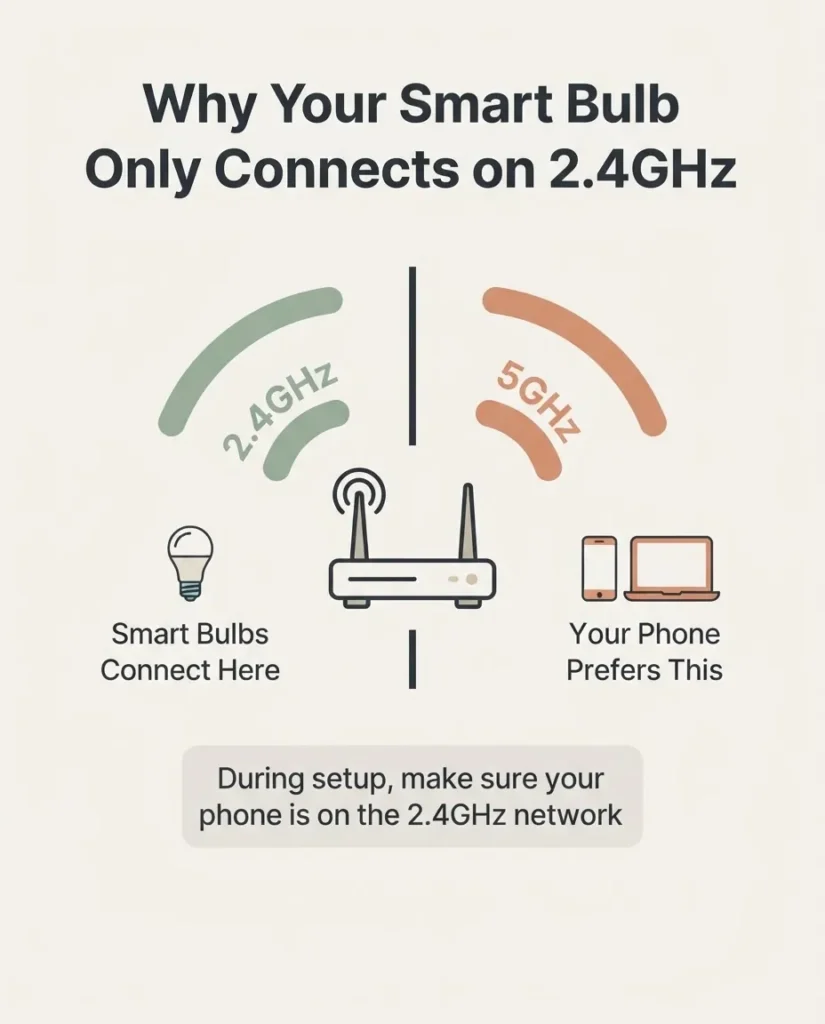
Your router almost certainly broadcasts two separate Wi-Fi bands: 2.4GHz and 5GHz. The 5GHz band is faster, which is why your phone prefers it when you’re sitting close to the router. But smart bulbs use a simpler, cheaper Wi-Fi chip that physically cannot communicate on 5GHz. When you open a setup app while your phone is connected to your 5GHz network, the app and the bulb are essentially on different channels, and they’ll never find each other.
The Feit Electric troubleshooting guide puts it plainly: if you’re sitting close to your router during setup, your phone almost certainly connected to 5GHz automatically, and that alone will block the pairing. Step one is always confirming which band your phone is on.
Step 1: Check Your Phone’s Wi-Fi Band
Before you reset anything or reinstall any app, do this first.
On iPhone, go to Settings, tap Wi-Fi, and look at your connected network. If your router broadcasts separate networks for each band, they’re often named something like “MyNetwork_2.4G” and “MyNetwork_5G.” If you see “5G” in the name of the one you’re connected to, switch to the 2.4GHz one.
On Android, open Settings, go to Wi-Fi, tap the gear or info icon next to your connected network, and look for the frequency. It will usually say 2.4GHz or 5GHz.
If you only see one network name for your whole house, you might have a combined SSID. This is where band steering comes in.
The Band Steering Problem
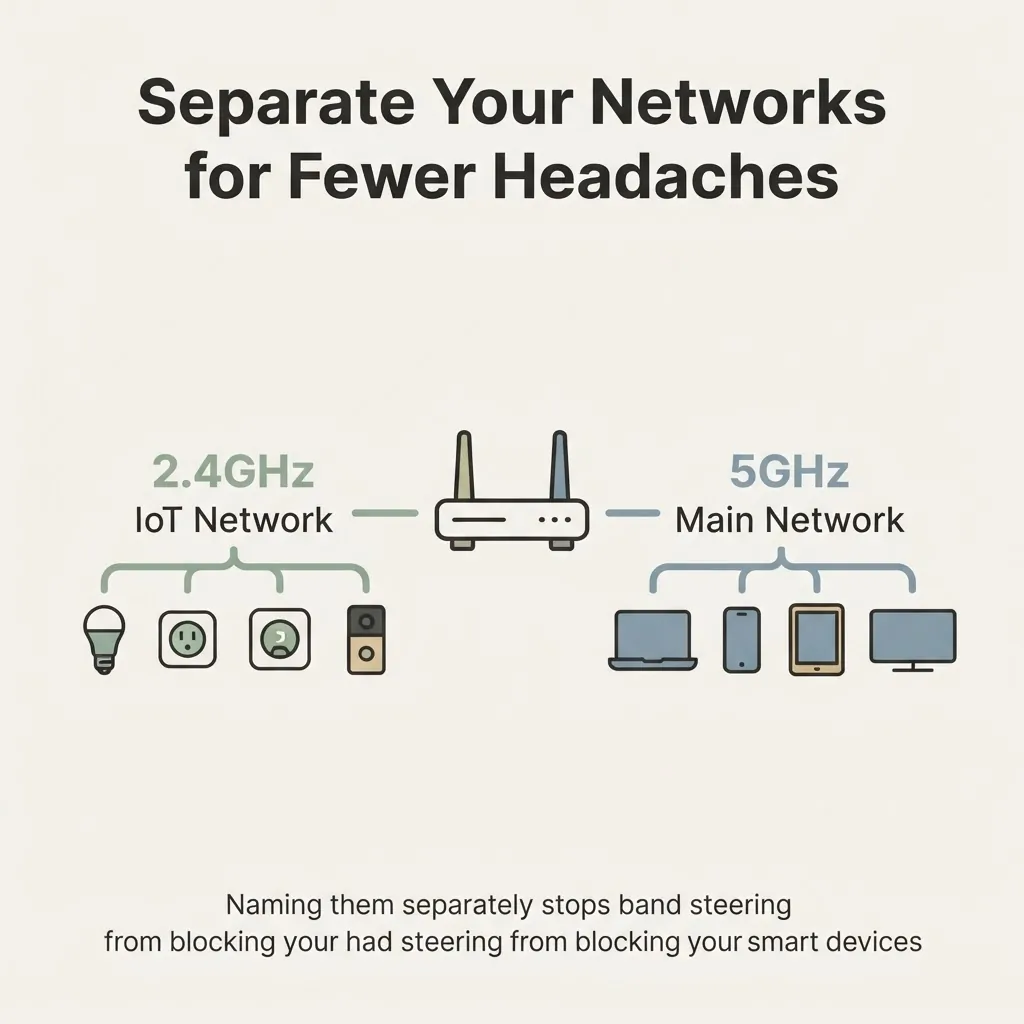
Many modern routers, especially mesh systems, combine your 2.4GHz and 5GHz networks into one single name and automatically decide which band to put each device on. That sounds convenient, but it causes real problems during smart bulb setup, because your phone will usually land on 5GHz. According to the LIFX smart home Wi-Fi setup guide, band steering is “the single biggest cause of ‘my smart bulb won’t connect’” for users with modern routers.
If you have a combined SSID, try this: move your phone to a room that’s farther from your router during setup. At a greater distance, most phones will drop to 2.4GHz because the signal is weaker. Then open the setup app and try pairing again. That trick works more often than you’d think.
If you want a more permanent fix, log into your router’s admin page (usually by typing 192.168.1.1 or 192.168.0.1 into a browser) and look for a setting called “Band Steering” or “Smart Connect.” Disabling it will let you name your 2.4GHz and 5GHz networks separately, so you can choose the right one during setup.
Step 2: Reset the Bulb
If the band wasn’t the issue, or if you tried once before and the bulb is now in a confused state, a reset is your next step.
Most smart bulbs reset the same basic way: cycling the power on and off several times in a row puts them back into pairing mode. The exact number of cycles varies by brand.
For most Kasa bulbs, cycle the switch off and on three times, pausing about one second between each. The bulb will flash three times to confirm it’s in pairing mode and ready to connect. If it doesn’t flash, try again more slowly. TP-Link’s official Kasa smart bulb reset guide covers both a soft reset (which keeps your settings) and a factory reset if you want to start completely fresh.
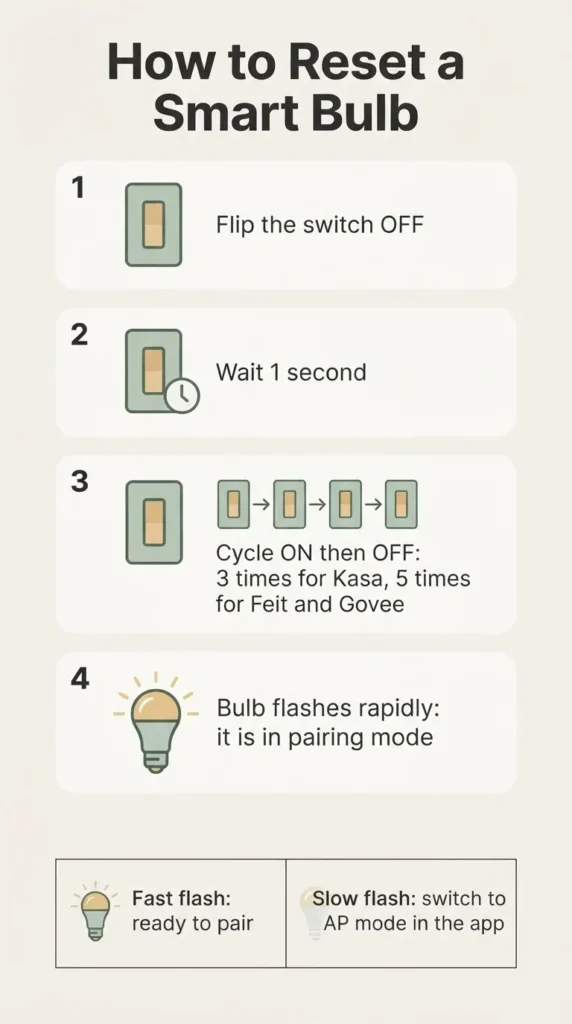
For Feit Electric, Govee, and most Tuya-based bulbs, the method is on/off/on/off/on (five cycles). Once the bulb starts flashing rapidly, it’s in EZ mode and ready to pair. A slow blink means it’s in AP mode, which is a different pairing method you’ll use if EZ mode keeps failing.
The key thing to remember: rapid flashing means pairing mode. If the bulb is just sitting there glowing steadily or not at all, it hasn’t been properly reset yet.
Step 3: Check the “Hidden Culprits” Most Guides Skip
Once your phone is on 2.4GHz and your bulb is flashing in pairing mode, there are still a few less-obvious things that can block connection. These trip people up constantly, and almost no manufacturer puts them front and center.
Turn off your VPN. If you have a VPN running on your phone, turn it off completely before you open the setup app. A VPN reroutes your network traffic through a different server, which means your phone’s local discovery process can’t find your bulb even when they’re technically on the same network. This is documented in TP-Link’s own support materials and comes up consistently in user troubleshooting forums. Disable the VPN, pair the bulb, then re-enable it afterward.
Check your Wi-Fi password length. Many routers, especially ISP-supplied ones, use auto-generated passwords that can be 20, 30, or even more characters long. Most smart bulbs cannot accept a password longer than 32 characters. If your password is close to or over that limit, and the app keeps failing right after you enter the password, try temporarily changing your Wi-Fi password to something shorter during setup.
On iPhone: you may need to manually join the bulb’s own network. This is an iOS-specific quirk that surprises a lot of people. When you’re setting up a Kasa bulb (and some other brands), the bulb creates its own temporary Wi-Fi hotspot during setup, with a name like “TP-LINK_Smart Bulb_XXXX.” On Android, the app usually handles this automatically. On iPhone, you have to manually go to Settings, tap Wi-Fi, and connect to that temporary bulb network yourself before going back to the app to finish setup. According to TP-Link’s official Kasa setup guide, this is expected behavior and not a sign that anything is broken.
Check iOS local network permissions. On iPhone, if you recently installed or reinstalled the bulb’s app, there’s a chance you declined the “local network access” permission prompt without realizing it. Go to Settings, scroll to the app, and make sure “Local Network” is toggled on. Without it, the app literally cannot see devices on your network.
Force-close the app. If the app found the bulb once and then failed, or if it seems stuck on “searching,” close the app completely and reopen it. A stuck app state is a surprisingly common cause of failures that has nothing to do with the hardware.
Step 4: Check Your Router Settings
If you’ve worked through everything above and the bulb still won’t connect, it’s time to look at your router.
A few things to check in your router’s admin page:
Your router may have a device connection limit that’s been quietly hit. Even capable routers sometimes have a factory default limit on how many devices can be connected at once. If you’ve added a lot of smart devices over time, this is worth checking.
Some routers have a firewall setting that blocks new, unknown devices from connecting, especially after a security update. Temporarily disabling the firewall to complete the pairing, then re-enabling it, can fix this.
If your Wi-Fi network uses WPA3 security only (which newer routers sometimes default to), some older smart bulbs only support WPA2. Check your router’s security settings and try switching to WPA2/WPA3 mixed mode.
The whizz-experts smart home Wi-Fi guide recommends creating a dedicated 2.4GHz IoT SSID specifically for smart home devices if you have a lot of them. This also prevents band steering from interfering every time you add something new. It sounds technical, but most modern router admin pages make it straightforward, and it’s a one-time fix that pays off every time you add a new device.
Why Your Bulb Keeps Dropping Off After It Connects
So the bulb paired, everything worked for a while, and now it keeps going offline. Different problem, similar root causes.
The most common culprits here are: your router occasionally reassigning a different IP address to the bulb (a DHCP lease issue), your router’s band steering moving the bulb from 2.4GHz to 5GHz when it senses a better signal, or the bulb physically being too far from your router.
The practical fix for the distance issue is simple: if the bulb is in a far corner of your home and keeps dropping, a Wi-Fi range extender placed midway will usually solve it. It doesn’t need to be fancy.
For the IP address issue, most routers let you assign a “static” or “reserved” IP address to a specific device so it always gets the same address. This is in your router’s admin page under something like “DHCP Reservations” or “Static Leases.”
A Note on Matter: Why This Gets Easier From Here
If you’ve been through this troubleshooting process and you’re now shopping for something more reliable, this is worth knowing. A newer standard called Matter is changing how smart bulbs (and all smart home devices) connect.
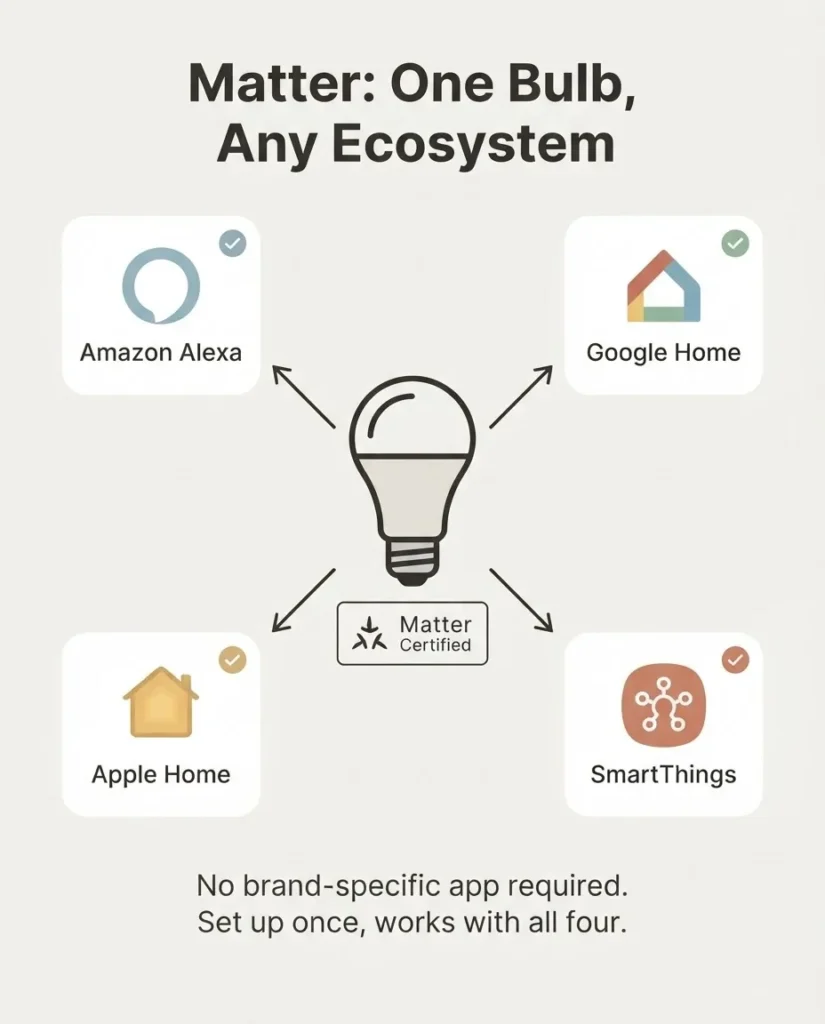
The Connectivity Standards Alliance, the body behind Matter, describes it as a seal of approval that devices will work reliably together regardless of brand. Matter-certified bulbs are commissioned via a QR code scan directly through the Apple Home app, Google Home, or Amazon Alexa, with no brand-specific app required and far less band-juggling.
More and more bulbs now support Matter, including some from Govee and WiZ. If you’re buying new and this pairing process frustrated you, filtering for “Matter compatible” on Amazon will save you headaches going forward. You won’t need to think about which network you’re on or whether your app version is current.
If You Want to Start Fresh: Beginner-Friendly Bulbs That Pair Easily
Sometimes a bulb is just fighting you, and the honest answer is that some are better designed for first-timers than others. Here are four solid, widely-available options that have a strong reputation for pairing without drama, all on the budget-to-mid-range end.
The Kasa KL135P2 is the one I’d point most beginners to first. It’s a hub-free, 2.4GHz-only bulb with a well-documented setup process, works with both Alexa and Google Home, and has consistently positive feedback for pairing reliability. TP-Link’s app is cleaner than most at this price.
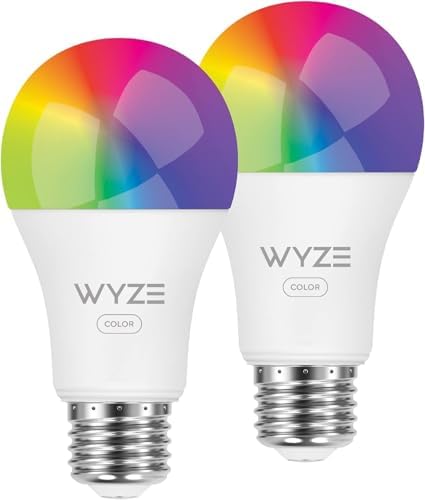
The Wyze Lifestyle Bulb Color is a budget-first pick that packs 16 million colors into a bulb that costs about what you’d spend on a couple of cups of coffee. The Wyze app is app-based only (2.4GHz), so the 2.4GHz rule applies, but users generally find the setup process fast once you know about that.
The Govee H6009 is the pick if you want Matter support at a budget price. It also supports Alexa and Google Home via the Govee app, and the Matter compatibility means if your setup grows later, you’re already in good shape. It’s noticeably brighter than the spec sheet competition in its price range, at 1200 lumens.
The WiZ Connected 2-Pack is worth mentioning because it’s made by Signify, the same company behind Philips Hue, and it supports Matter. No hub is required, setup goes through the WiZ app, and the Wirecutter has consistently rated WiZ as the best smart bulb for straightforward setups. It lands in the mid-budget range and offers a solid balance of ease and reliability.

- Multicolor & Auto White: Dimmable 16 million colors and 1000 lumens warm to cool whites(2500K-9000K). Set your bulb to a…
- Voice Control: Get hands-free control of your lights with your voice via Amazon Alexa or Google Assistant. Perfect for t…
- Remote Control: Control your smart light bulb from anywhere with your smartphone using the free Kasa smart app (iOS, And…

- COMPATIBLE MODELS: Compatible with select Blueair Classic 500/600 Series air purifiers, including 501, 503, 505, 550E, 5…
- ACTIVATED CARBON: Features an activated carbon layer as part of the filter construction for compatible air purifier repl…
- 3-PACK: Includes 3 replacement filters, providing convenient spare filters for routine replacement and maintenance.
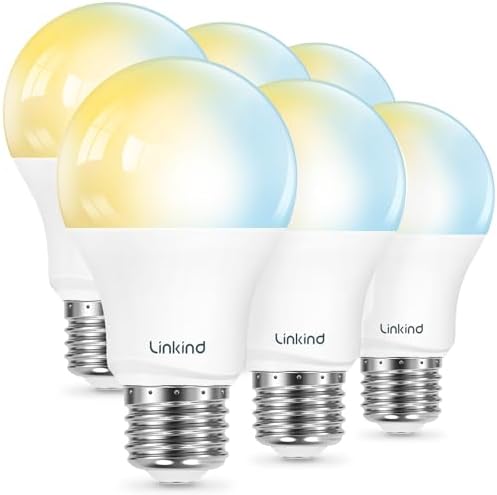
- 【Alexa & Google Home Control — Requires AiDot App Setup】This non-Matter smart light bulb requires AiDot setup before lin…
- 【2700K-6500K Tunable White: One Bulb for All Scenes】Linkind smart light bulb is capable of tuning from warm white (2700K…
- 【Schedule & Dimming: Energy-Saving & Customizable】This 60W equivalent smart bulb (only 8.5W actual power) features 1%-10…
The Bigger Picture: A Thought Before You Close This Tab
A smart bulb that won’t connect isn’t a sign that smart home tech “isn’t for you.” It’s almost always a solvable Wi-Fi issue, and the same fix that works for your first bulb will work for every bulb you ever add. Once you’ve been through it once, you won’t think about it again.
The checklist, in order: phone on 2.4GHz, VPN off, bulb properly reset and flashing, app has local network permission, no wall-length Wi-Fi password. That covers the vast majority of failures. If it still won’t connect after all of that, the Matter-certified options above are worth considering for your next purchase, because they’re genuinely designed to make this step easier.
FAQ: Smart Bulb Connection Questions
Does a smart bulb need 2.4GHz Wi-Fi?
Almost all budget and mid-range smart bulbs require 2.4GHz Wi-Fi, not 5GHz. This is a hardware limitation of the Wi-Fi chip inside the bulb, not a brand preference. If your phone is connected to a 5GHz network during setup, the bulb and phone cannot communicate, and pairing will fail. Always confirm your phone is on 2.4GHz before you start the setup process.
How do I reset a smart bulb that won’t pair?
For most smart bulbs, you reset by cycling the power switch off and on three to five times in quick succession, with about one second between each cycle. The bulb will flash rapidly when it has entered pairing mode and is ready to connect. The exact number of cycles varies by brand: Kasa uses three cycles, while Feit Electric and many Govee/Tuya-based bulbs use five.
Why does my smart bulb keep dropping off Wi-Fi?
The most common causes are: the bulb being too far from the router (the 2.4GHz signal can still be limited by walls and distance), your router using band steering to move the bulb between bands, or a DHCP lease renewal that gives the bulb a new IP address and confuses the app. Assigning a reserved IP address in your router settings, and placing a Wi-Fi extender closer to the bulb if needed, resolves most persistent disconnection issues.
Do I need a hub for a smart bulb?
Most Wi-Fi-based smart bulbs are hub-free and connect directly to your router. Philips Hue is a notable exception, requiring its own Hue Bridge (hub) for full functionality. Matter-certified bulbs are also hub-free and have the added benefit of working across multiple ecosystems without a brand-specific app. If someone tries to sell you a hub you weren’t expecting, make sure you actually need it before buying.
What does it mean when my smart bulb flashes?
A rapid flash (quick, repeated blinking) means the bulb is in pairing mode and waiting to connect. A slow flash (one blink every second or two) means the bulb is in AP mode, which is an alternative pairing method used when EZ mode keeps failing. If the bulb is glowing steadily with no blinking, it has not been successfully put into pairing mode yet and needs to be reset again. The CSA Matter FAQ notes that Matter-certified bulbs use a Bluetooth LE handshake for commissioning, which eliminates most of the band-juggling described here.