
Here’s the short answer: it depends on which type of smart bulb you have and what you mean by “without Wi-Fi.” Wi-Fi smart bulbs stop responding to app and voice commands when your Wi-Fi goes down, but Bluetooth and Zigbee bulbs can still work locally without any internet connection at all. And yes, you can always walk over and flip the physical switch on any smart bulb, because underneath all the smart features, it’s still just a light bulb.
That answer, though, is the beginning of a longer conversation worth having, because “without Wi-Fi” can mean a few different things, and which one you’re dealing with changes everything about what your bulb will or won’t do. Let me walk you through all of it, in plain English.
What “Without Wi-Fi” Actually Means (Three Different Situations)
This is the part most articles skip, and it’s the part that actually matters. When people ask whether smart bulbs work without Wi-Fi, they usually mean one of three very different things:
The first is a temporary internet outage. Your router is on, your home network is running, but your ISP is having a rough afternoon. The second is your whole Wi-Fi network going down, which means the router itself is off or restarting. The third is a home that genuinely has no Wi-Fi network at all, which is rare but worth covering.
These three situations produce very different results depending on the type of bulb you have.
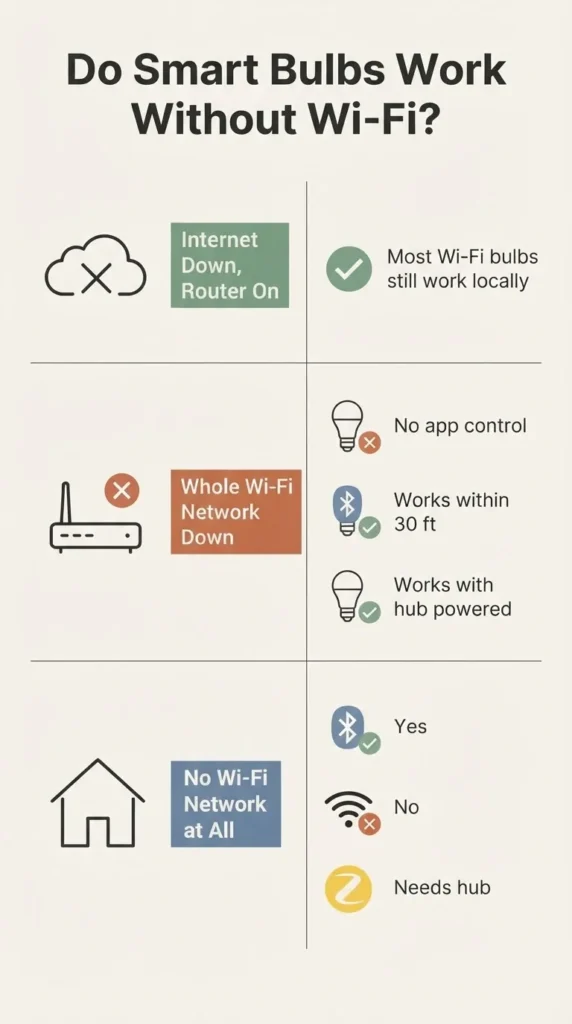
Getting this distinction right is the difference between being frustrated at a smart bulb for something that isn’t really its fault and actually understanding what you bought.
Scenario 1: The Internet Goes Out But Your Router Stays On
This is the most common situation. Your ISP goes down. Maybe a storm knocked something out, or the cable company is doing maintenance. Your router is still running, and your home Wi-Fi network is still broadcasting.
For most Wi-Fi smart bulbs, this is actually fine. The bulb is still connected to your local network, and many modern smart bulbs support what’s called local control. That means the bulb can receive commands from your phone app while your phone is on the same home network, even without a live internet connection. You may lose the ability to control lights remotely from outside your house, and some automations that rely on cloud schedules might not fire. But you can still walk up to the app on your phone, tap, and the light responds.
This is one of the reasons the new Matter standard from the Connectivity Standards Alliance is genuinely worth paying attention to. Matter was designed from the ground up to be locally controlled first. Matter-certified bulbs communicate directly with a compatible hub or controller on your home network, so an internet outage doesn’t take your lights with it. If you’re buying new bulbs today and local reliability matters to you, Matter certification is one of the few spec-sheet items I’d actually encourage you to care about.
Scenario 2: Your Whole Wi-Fi Network Goes Down
Now your router restarts, or you unplug it, or you’re moving and the internet isn’t set up yet. Your home Wi-Fi network doesn’t exist right now. This is where things get more interesting, and where different bulb types behave very differently.
Wi-Fi bulbs need your router running to communicate. No Wi-Fi network means no app control, no voice commands, no automations. The bulb is still a bulb, though: if it was already on when the network dropped, it stays on. If it was off, it stays off. You can still flip the physical wall switch to turn it on or off manually. It just won’t respond to your phone or your voice.
Bluetooth bulbs are a different story. Bluetooth smart bulbs connect directly to your phone over a short-range wireless signal, no router required. If you’re within about 30 feet of the bulb, you can open the app and control it just fine even with no Wi-Fi in the house at all. The tradeoff is range: Bluetooth typically works within one room, and you lose remote access entirely.
Zigbee bulbs use a separate wireless protocol that doesn’t touch your Wi-Fi at all. They communicate through a hub (or a device with a built-in hub, like an Echo 4th Gen), and that hub handles the commands locally. According to Amazon’s Alexa developer documentation on Zigbee support, Zigbee operates at 2.4GHz with a typical range of 50–100 feet per hop, and it forms a mesh, meaning Zigbee devices can relay signals to each other to extend coverage. As long as the hub has power, Zigbee bulbs can keep working without any internet connection and without any Wi-Fi network active.
Scenario 3: No Wi-Fi in the Home at All
This is the most challenging scenario, and it’s a genuinely valid one. Maybe you’re in a temporary living situation. Maybe you’re staying somewhere with no router. Maybe you’re setting up a rental unit for short-term use.
For Wi-Fi bulbs, this simply won’t work. They need a 2.4GHz Wi-Fi network to connect to during setup, and they need that network to stay connected for app and voice control.
For Bluetooth-only setups, you’re fine. A Bluetooth bulb doesn’t care whether a router exists. Your phone talks directly to the bulb.
For Zigbee, you’d need a hub with power and a wired connection or its own network, which makes it less practical in a truly router-free home.
The honest summary: if you want the most flexibility in a no-Wi-Fi situation, Bluetooth or a Bluetooth-enabled bulb (one that supports both Bluetooth and Wi-Fi) is the right call. Philips Hue, for example, offers a setup path that needs no Hue Bridge and no hub at all, using just Bluetooth and the Hue app on your phone. You get up to 10 bulbs per control device and basic on/off, dimming, and color control without a router in sight.
The One Thing Nobody Warns You About: The Wall Switch Problem
Here’s something that trips up nearly everyone who gets their first smart bulb, and it’s probably the most important practical thing in this entire article.
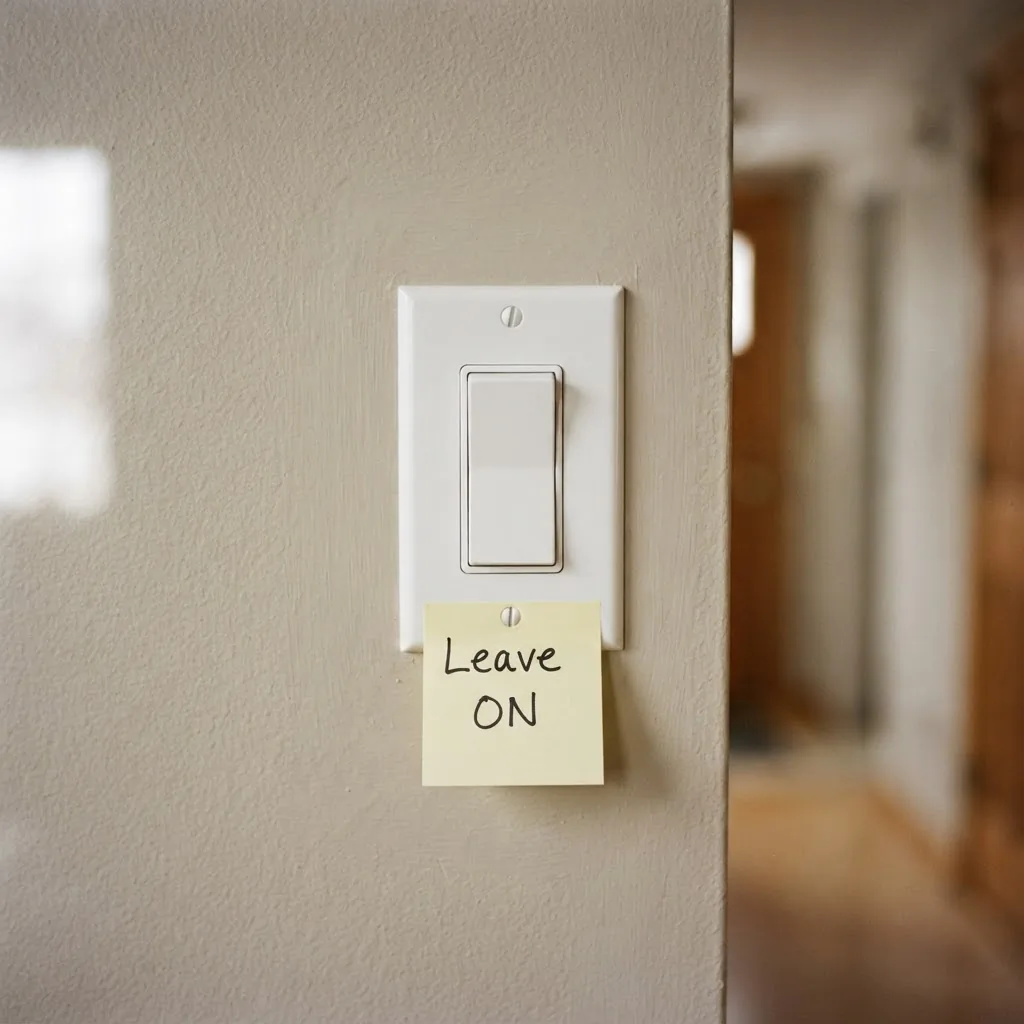
Smart bulbs need to be powered on at the wall switch at all times. If someone flips the physical switch off, the bulb loses power completely. No app, no voice assistant, no Wi-Fi, no Zigbee network, nothing can turn it back on because there’s no electricity reaching it at all.
This isn’t a defect. It’s just physics. The bulb needs a constant trickle of power to stay connected to your network and listen for commands. The moment that power is cut at the switch, it goes dark and goes silent.
The practical fix is simple: leave the wall switch permanently on and treat the app or a voice assistant as your new “switch.” If you live with other people, this requires a quick conversation, because the habit of reaching for the light switch dies hard. Some people put a small cover over the switch, or a little reminder label. Others eventually graduate to smart switches, which solve the problem more elegantly by replacing the physical switch entirely.
The 2.4GHz Question (This Is Why Your Bulb Won’t Pair)
If you’ve already tried setting up a Wi-Fi smart bulb and hit a wall during the pairing process, there’s a very good chance this is why.
The vast majority of Wi-Fi smart bulbs require a 2.4GHz Wi-Fi network, and most modern routers broadcast both 2.4GHz and 5GHz bands, sometimes with the same network name. When your phone automatically connects to the 5GHz band (which it often prefers because it’s faster), the bulb can’t find the network it needs to connect to.
The Connectivity Standards Alliance’s guidance on Matter devices and home networks recommends keeping smart home devices on your primary network and, where possible, using a single unified SSID that covers both bands, letting your router handle which device gets which frequency. If your bulb keeps failing to pair, the fastest fix is usually to go into your router settings and either split your bands into separate network names (so you can manually connect to 2.4GHz) or temporarily disable the 5GHz band during setup.
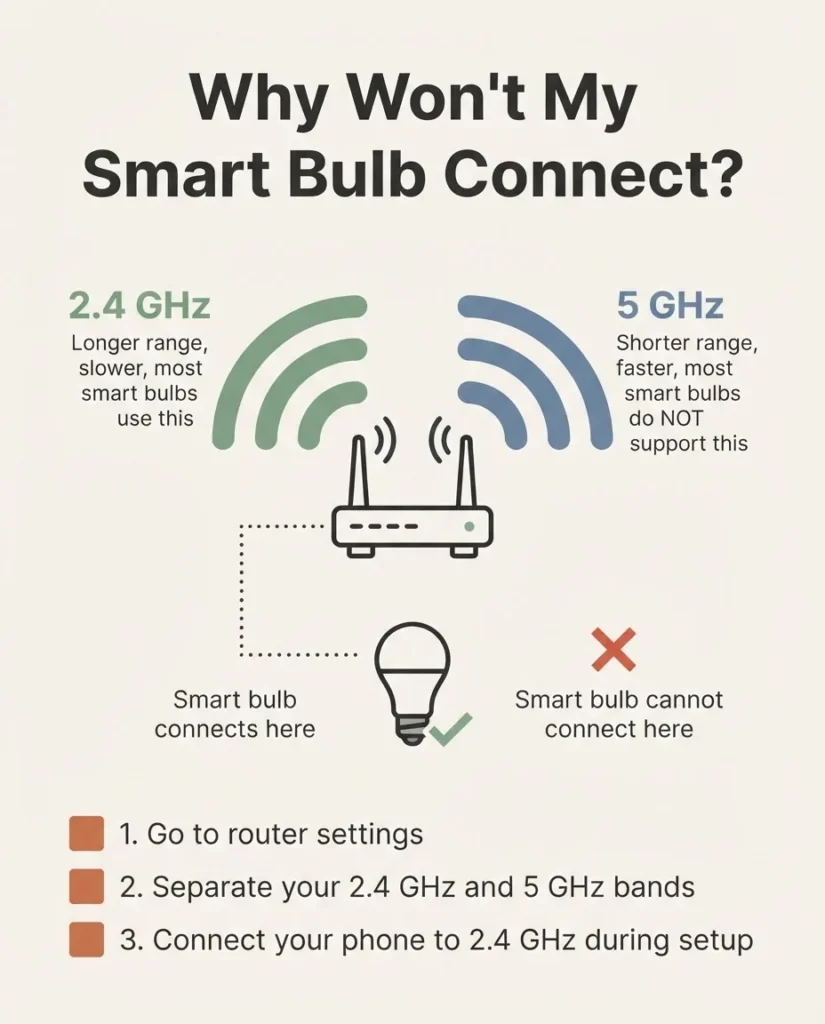
Feit’s support documentation also addresses this clearly in their guide on why smart devices struggle to connect: aggressive “band steering” on the router, which automatically pushes devices between bands, is one of the most common culprits behind smart bulb connection failures.
Do Smart Bulbs Require a Subscription Fee?
This comes up constantly, and the answer is reassuring. Most smart bulbs do not require a subscription fee. You pay once for the bulb and control it for free through the app or a compatible voice assistant, indefinitely.
Subscriptions in the smart home world are mostly attached to cameras and video doorbells (for cloud storage of footage), not light bulbs. Smart bulb apps are generally free to download and free to use. Features like schedules, automations, color scenes, and routines are included at no ongoing cost on essentially every mainstream smart bulb brand I’m aware of.
Three Smart Bulb Paths: Which One Fits You
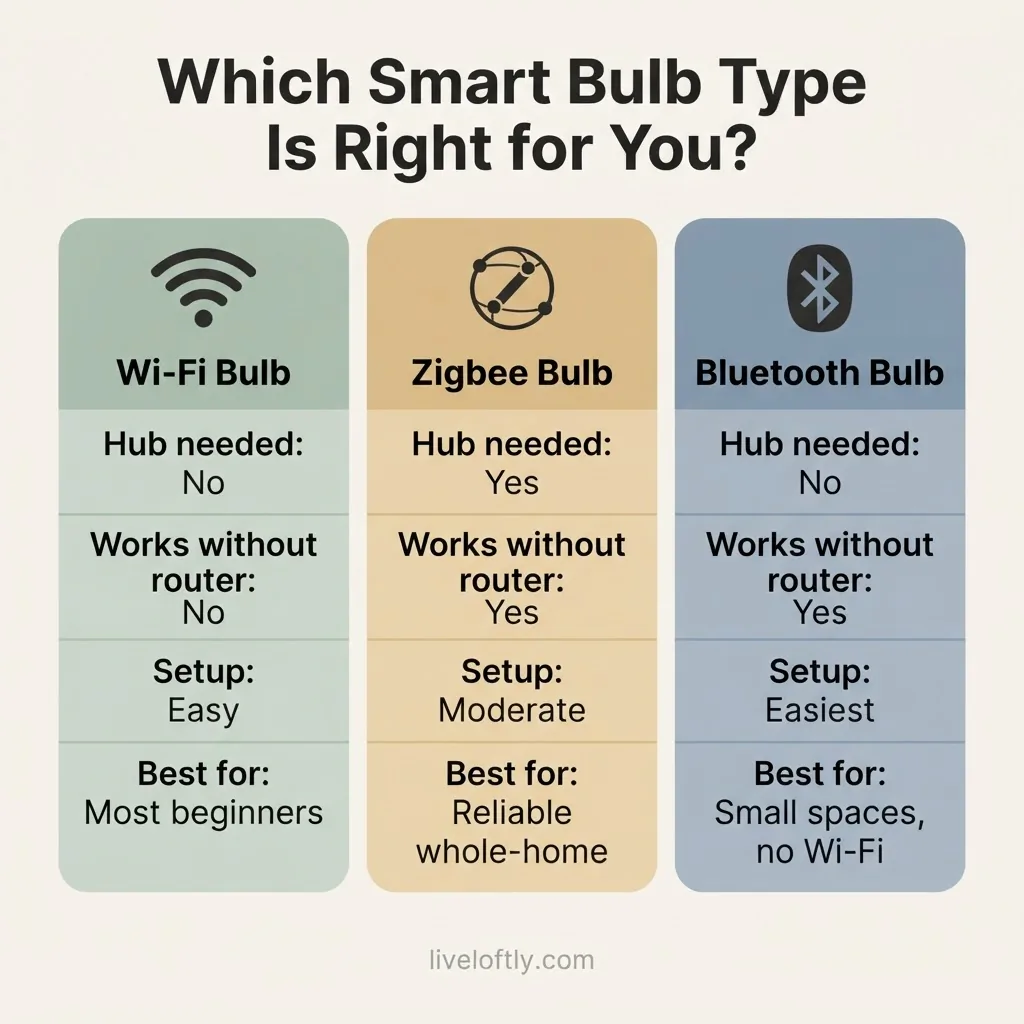
Let me make this concrete. There are three main approaches to smart bulbs today, and each has a different relationship with Wi-Fi.
Path 1: Wi-Fi Bulbs (The Simple, No-Hub Route)
These connect directly to your 2.4GHz Wi-Fi network. Setup is easy: screw in, download the app, tap through a few screens, done. No extra hardware. No hub. Works with Alexa and Google right out of the box on most models.
The tradeoff: they’re dependent on your Wi-Fi staying up for smart features. They’ll also add a small number of devices to your home network, which rarely matters unless you have dozens of them.
Good beginner picks in this category include the WiZ Connected A19 (no hub, Wi-Fi, newer models are Matter-certified), the GE CYNC (Bluetooth plus Wi-Fi, no hub needed, newer models support Matter), and the TP-Link Tapo L535E (Matter-certified, bright at 1100 lumens, works with Alexa, Google, and Apple). The full GE CYNC smart bulb lineup is a solid reference if you want to see what the Direct Connect (no hub) approach looks like from a single brand.

- ACTIVATE WITH MOTION – With a minimum of two WiZ lights in the same room at least 2m/6.56ft apart you can activate Space…
- TUNABLE WHITE LIGHT — Create the ideal atmosphere at home. Easily select any shade of white light, from cool daylight fo…
- HUMAN-CENTRIC LIGHTING – This LED bulb also allows you to choose from different shades of warm to cool light to create t…

- Smart bulbs that work with Alexa: Directly connect these smart LED bulbs to your Google Assistant or Amazon Alexa (sold …
- Wi-Fi light bulbs: Easily connect these smart light bulbs directly to your Wi-Fi router, providing voice control for you…
- Manage your smart bulbs away from home: Get added home security and convenience by controlling your Wi-Fi light bulbs wi…

- 【Matter-Certified】 Matter devices work with any certified platform such as Apple Home, Alexa, Google Home & SmartThings….
- 【Extra Bright 1100-Lumen Light】Tapo L535E provides 1100 lumens of crisp, high-quality lighting, which is brighter than m…
- 【Millions of Colors & Dimmable】 Easily design scenarios with various vivid colors for your daily routine or special acti…
Path 2: Zigbee Bulbs (The Reliable, Hub-Required Route)
Zigbee bulbs don’t touch your Wi-Fi network at all. They operate on a separate mesh, which makes them significantly more reliable, especially in homes with a lot of Wi-Fi congestion or weaker signals in far corners of the house. The catch is that you need a hub. The good news is you may already have one: an Echo 4th Gen, an Echo Show (certain models), or an Echo Plus all include a built-in Zigbee hub. So if you already own one of those, you’re closer to ready than you think.
Sengled’s Zigbee bulbs are a consistently well-regarded option here. They pair with SmartThings and compatible Echo devices, they don’t act as Zigbee repeaters (which actually makes them more predictable for beginners since they simplify the mesh), and they’re among the more affordable Zigbee bulbs available.

- 【Zigbee Hub Required】Pair Sengled Zigbee smart light bulbs to a compatible smart hub, like Sengled Smart Hub(sold separa…
- 【ZigBee Smart Bulb with a Vintage Look】Sengled smart bulbs combine the antique filament look and modern technology, brin…
- 【Simple Voice Control】You need to pair our Edison smart bulbs with a compatible hub to activate complete voice control w…
Path 3: Bluetooth Bulbs (The True No-Wi-Fi Option)
If you genuinely need smart control with zero Wi-Fi involvement, Bluetooth is your answer. Philips Hue’s Bluetooth setup is the clearest example: no Bridge, no hub, just the bulb, the Hue app on your phone, and Bluetooth. You can control up to 10 bulbs per device, with a range of about 30 feet. You get on/off, dimming, and color control. What you lose is remote access from outside the house and more complex automations. For a single room, a small apartment, or a first-timer who just wants to see if they like smart lighting before committing to a full ecosystem, this is a genuinely useful starting point.

- WHAT’S IN THE BOX: Includes one Hue Bridge that unlocks the full potential of your Philips Hue system, including automat…
- SECURE AND STABLE CONNECTION: With Zigbee advanced technology, the bridge ensures a reliable connection that won’t strai…
- CONTROL LIGHTS FROM ANYWHERE: The Hue hub enables out-of-home control, control your lights with the Hue app anywhere you…
Why Your Smart Bulb Keeps Dropping Off Wi-Fi (And How to Fix It)
Let’s talk about the frustration that actually sends most people to Google in the first place. Your bulb was working, and now it’s showing as “offline” in the app. You didn’t change anything. Why?
The most common causes are almost always network-related, not bulb-related. Here’s what to check, in order:
First, confirm your router is broadcasting a 2.4GHz band and that the bulb is on that band, not the 5GHz band. TP-Link’s own Tapo support page on devices going offline lists Wi-Fi signal strength as one of the primary causes: if the bulb is on the edge of your network’s range, it will drop off intermittently. Moving the bulb closer to your router or adding a Wi-Fi extender often solves this permanently.
Second, check whether your router restarted recently. Most Wi-Fi smart bulbs reconnect automatically after a router reboot, but some need a moment to re-establish the connection. Give it two to three minutes before assuming something is broken.
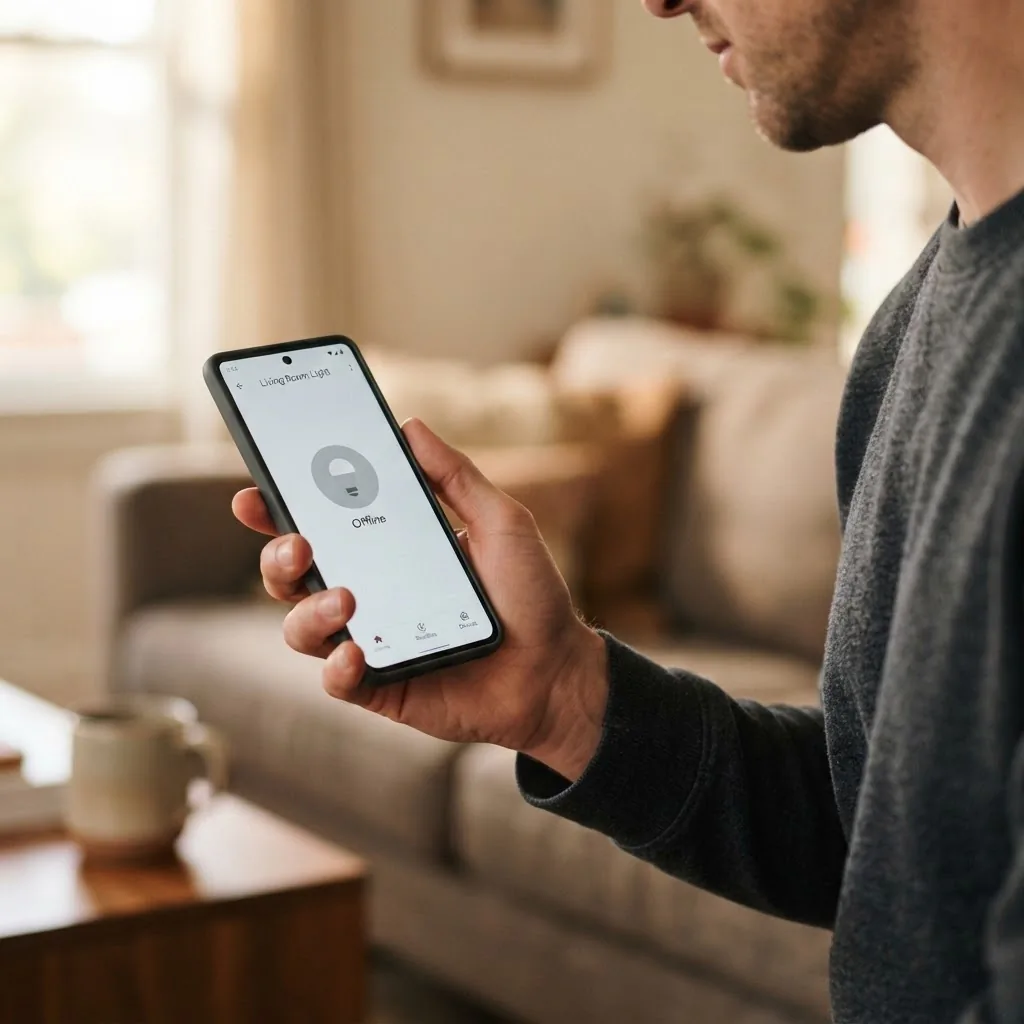
Third, if you’re experiencing widespread bulb drops after a router update or a network change, the fix is often to simply do a soft reset on the bulb (usually a rapid on-off cycle at the physical switch, about five times) and re-add it in the app.
None of these are catastrophic. They’re just the everyday reality of any Wi-Fi device. The key thing to remember is that a smart bulb dropping off Wi-Fi is almost always a network issue, not a dead bulb.
The “Can I Still Use It as a Normal Bulb?” Question
Yes, always. Every smart bulb is a regular bulb underneath the smart features. If the app doesn’t work, if your Wi-Fi is down, if the server is having a bad day, you can still walk to the wall, flip the physical switch, and get light. The smart features are a layer on top of basic functionality, not a replacement for it.
This is one of the reasons I don’t think smart bulbs are a gamble the way some people feel they are. The worst case isn’t “you’re sitting in the dark.” The worst case is “you’re sitting in the dark using a regular light switch like it’s 2010.”
A Quick Note on Ecosystems: Alexa vs. Google vs. Apple
Most mainstream Wi-Fi and Bluetooth smart bulbs today work with both Alexa and Google Home without much fuss. Apple HomeKit is a bit more selective and has historically required either a Hub Bridge or a Matter-certified bulb. If you’re already in the Apple ecosystem and want your lights to work with Siri and the Home app, look for “Matter” or “HomeKit” explicitly on the box.
If you don’t have a strong preference and you’re just starting out, Wi-Fi bulbs that work with Alexa or Google are the simplest entry point. One app, one voice assistant, no hub.
Worth It or Skip It? Daniel’s Honest Take
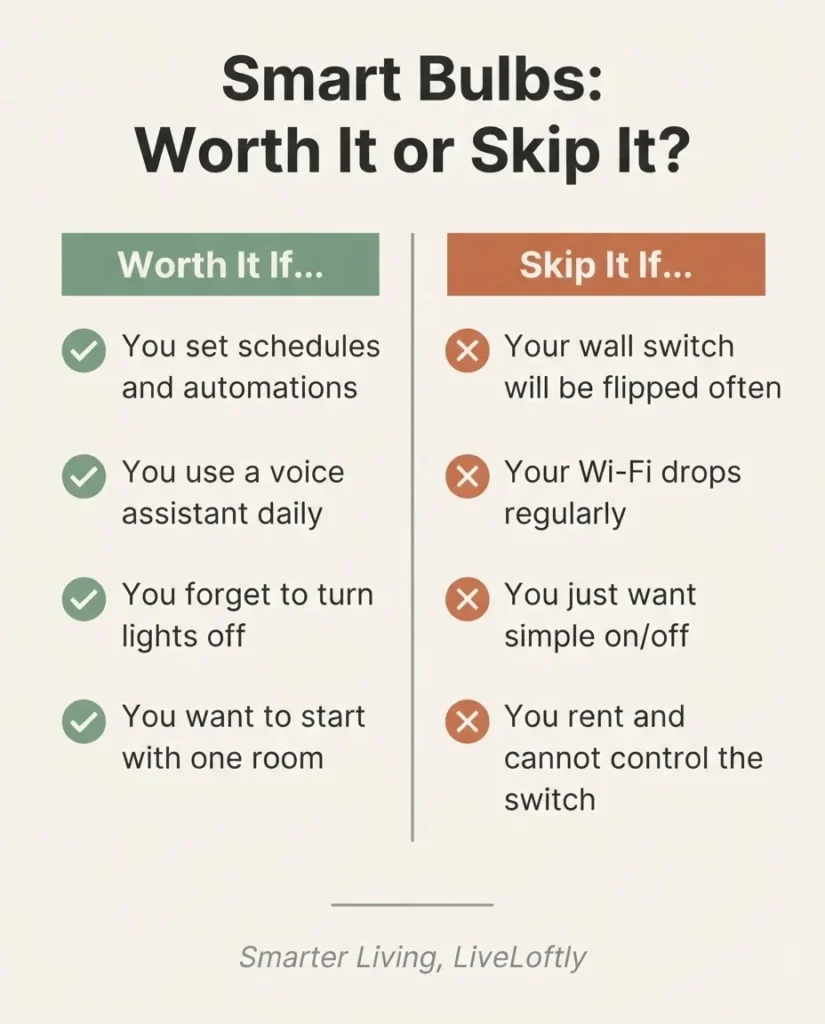
Smart bulbs earn their spot in most homes, but with some honest caveats. They’re worth it if you want to set schedules (coming home to a lit room, or having lights dim automatically in the evening), if you use voice control regularly, or if you find yourself forgetting to turn lights off. The convenience genuinely compounds over time in small, quiet ways that I think are easy to underestimate.
They’re not worth the upgrade if you’re in a rental where you can’t control the physical switches freely and the wall-switch problem will constantly undo your smart setup. In that case, a smart plug plus a regular lamp is often a better, more renter-friendly first step.
And for what it’s worth: I got into all of this one device at a time, starting with a smart plug to stop leaving a lamp on all day.
Smart bulbs came next, and they’ve earned their spot. But the first bulb I ever set up involved exactly the 2.4GHz problem I described above, and I spent a genuinely embarrassing amount of time troubleshooting something that turned out to be a five-second router settings fix. That’s why I wanted to put that section in plain sight at the top.
Frequently Asked Questions
Do smart bulbs work if the internet goes out?
It depends on the bulb type and whether your Wi-Fi router is still running. If only your internet connection is down but your router is on and broadcasting, many smart bulbs with local control will still respond to commands from your phone app on the same network. If your Wi-Fi network itself goes down (router off), only Bluetooth and Zigbee bulbs can still be controlled, and only locally.
Can smart bulbs work without any Wi-Fi at all?
Bluetooth smart bulbs can work with no Wi-Fi network in the house. They connect directly to your phone over Bluetooth, typically within about 30 feet. Zigbee bulbs also don’t require Wi-Fi but do need a hub with power. Wi-Fi bulbs require an active 2.4GHz Wi-Fi network to connect and respond to commands.
Do smart bulbs require a monthly subscription?
Most smart bulbs do not require a subscription fee. You pay once for the bulb and control it for free through the manufacturer’s app or a compatible voice assistant. Subscription fees are much more commonly associated with cameras and video doorbells, not bulbs.
Why does my smart bulb keep showing as offline?
The most common causes are weak Wi-Fi signal at the bulb’s location, the bulb connecting to a 5GHz band instead of the required 2.4GHz band, or the router restarting and the bulb not yet reconnecting. Check your Wi-Fi band settings first, confirm signal strength, and if needed, do a soft reset on the bulb and re-add it in the app.
What happens to a smart bulb during a power outage?
During a power outage, the bulb loses all electricity and cannot function at all. When power returns, most smart bulbs default to turning back on (the last state before power was lost, or a preset default state, depending on the brand). Some brands let you set the “power restore” behavior in the app.